
Campaigns: Templates, Segments, Results
Campaigns let you broadcast a WhatsApp marketing message to a group of your customers, straight from the Cartsaver admin. You start from a ready-made template, pick an audience from your Shopify customers, submit the message to Meta for review, and Cartsaver sends it once it is approved. Every campaign then gets its own results page with deliveries, clicks, orders and revenue.
For campaign ideas, pricing and the SMS campaigns that are coming soon, see WhatsApp marketing campaigns for Shopify.
Open it from Campaigns in the Cartsaver app menu.
Channel: WhatsApp
Section titled “Channel: WhatsApp”Campaigns send on WhatsApp. The Campaigns page lists SMS as coming soon; it isn’t available yet.
Which plans can launch campaigns?
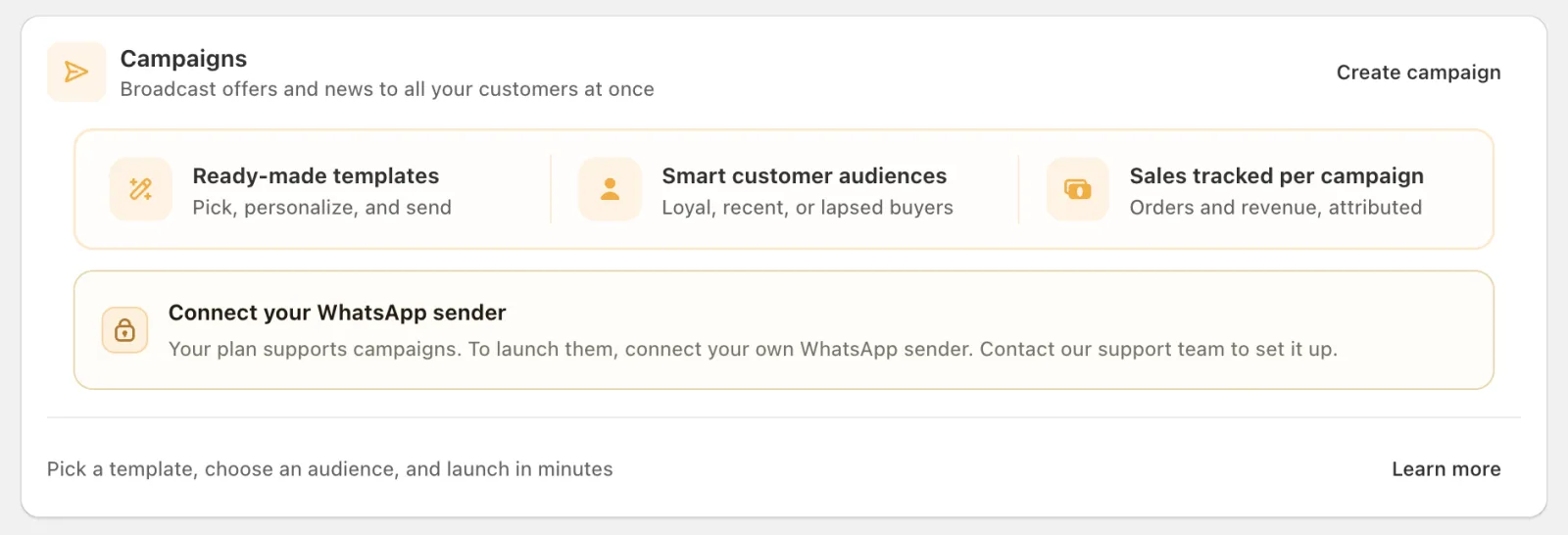
Section titled “Which plans can launch campaigns?”You can build campaigns and save drafts on Advanced and Unlimited, but only Scale and Ultra can launch them, and only once your store has its own WhatsApp sender connected. On the Free plan you can see the Campaigns page, and creating a campaign takes you to the plans page.
| Your plan | What you can do |
|---|---|
| Free | See the Campaigns page. Creating a campaign takes you to the plans page. |
| Advanced, Unlimited | Build campaigns and save drafts. Launch stays locked until you move to Scale or Ultra. |
| Scale, Ultra | Build and launch campaigns, once your store has its own WhatsApp sender connected. |
If you are on Scale or Ultra but don’t have your own WhatsApp sender yet, the Campaigns card on your dashboard says Connect your WhatsApp sender and asks you to contact support to set it up. You can also start the connection yourself from the Connect your WhatsApp card on the dashboard (see Choose a verification channel).
What does a campaign cost?
Section titled “What does a campaign cost?”A campaign has two separate costs. Meta charges its marketing message rate for each delivered message, billed to your WhatsApp Business account and set by the recipient’s country. Cartsaver adds its commission per delivered campaign message, $0.01 on Scale and $0 on Ultra, billed through Shopify’s usage charges.
- WhatsApp message cost (Meta). Meta charges its marketing message rate for each delivered message, billed by Meta to your WhatsApp Business account. The rate depends on the recipient’s country.
- Cartsaver campaign fee. Cartsaver’s commission per delivered campaign message: $0.01 on Scale and $0 on Ultra. It is billed through Shopify’s usage charges, in prepaid blocks of 100 messages.
The editor shows an estimated cost before you launch: the WhatsApp message line (“Paid directly to Meta”) and the app fee line (“Billed through Shopify”).
Create a campaign
Section titled “Create a campaign”- On the Campaigns page, click Create campaign. The template library opens.
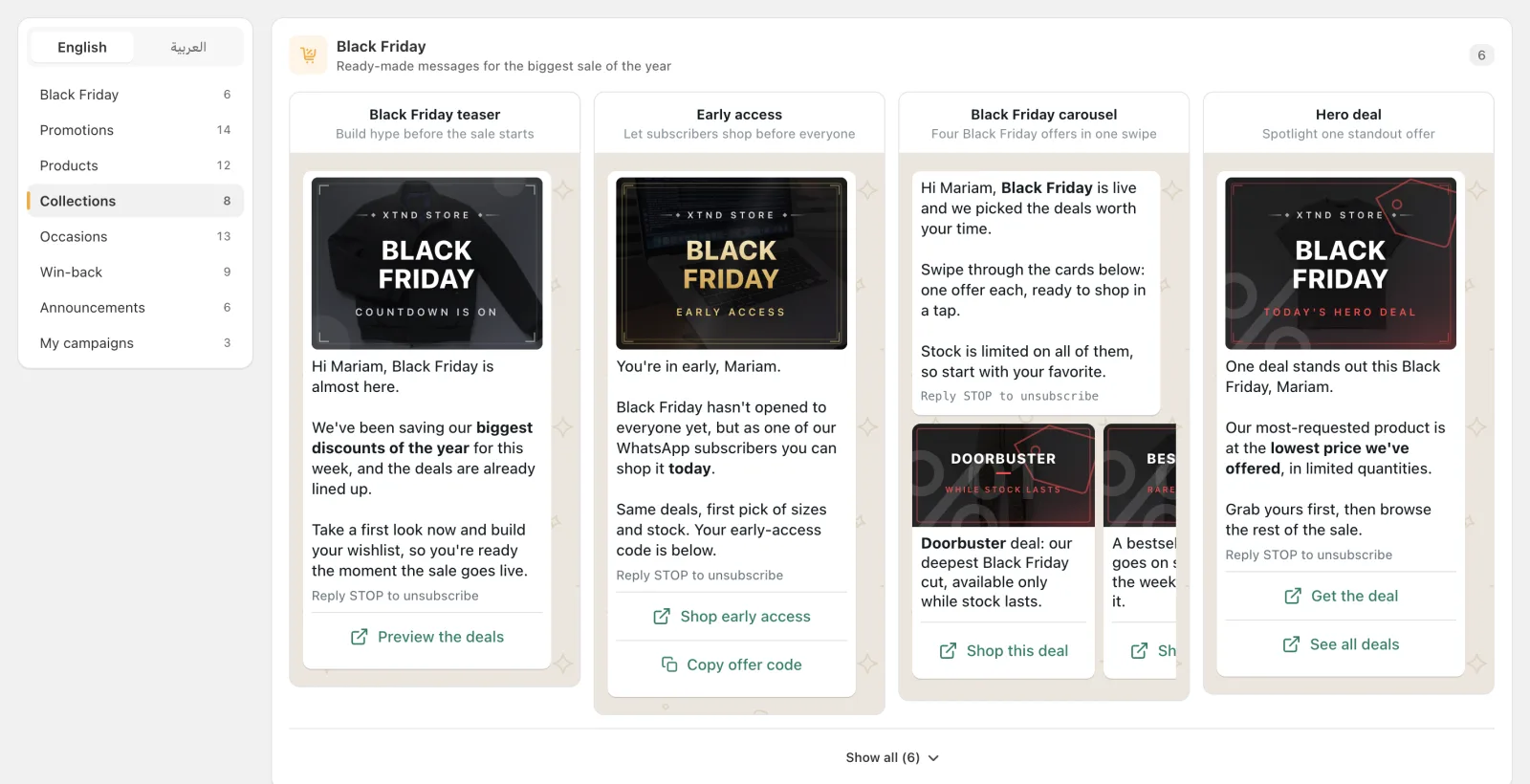
- Pick a starter template, reuse one of your earlier campaigns, or choose Start from scratch. The library has 68 starters in seven categories: Black Friday, Promotions, Products, Collections, Occasions, Win-back and Announcements. My campaigns lists your earlier campaigns to reuse.
- Edit the message on the phone preview, choose the audience and the start time in the sidebar.
- Click Launch, check the summary, then click Submit for review.
You can save a draft at any point with Save draft.
The template library opens on the Black Friday category:
Message format
Section titled “Message format”Choose the format at the top of the sidebar:
- Single message: one image header, a message body and up to three buttons.
- Carousel: a swipeable carousel of 2 to 10 cards. Each card has its own image, optional text of up to 160 characters and one link button. The button label is shared by every card.
The message body can be up to 1,024 characters and supports bold,
italic and strikethrough. Insert the Customer name variable
to greet each customer by first name. If the first name is empty,
Cartsaver uses the last name, and if both are empty it uses “there”.
Image header
Section titled “Image header”A single message needs an image header before you can submit it. Use an image from your Shopify files, upload one (JPEG or PNG, up to 5 MB), or paste an image URL. Video headers aren’t available right now.
Many starter templates come with a designed banner in the image slot. When you save the campaign, Cartsaver turns that banner into a regular image in your Shopify files. You can replace it with your own image at any time.
Buttons
Section titled “Buttons”You can add up to three buttons:
| Button | Limit | What it does |
|---|---|---|
| Link | Up to 2 | Opens a URL. Type one, or pick your home page, a collection or a product from your store. |
| Copy code | 1 | Lets the customer copy a promo code you type in (letters and numbers only, up to 15 characters). |
| Support chat | 1 | Opens a WhatsApp chat with your support number (country code included, no +). |
Link and Support chat buttons together can’t exceed two. Button labels are limited to 25 characters. The Copy code button only shows the code you enter; create the matching discount in Shopify yourself.
Opt-out line
Section titled “Opt-out line”Cartsaver adds an opt-out line (“Reply STOP to unsubscribe”) to every campaign message. You can’t edit or remove it. Customers who reply STOP are excluded from your future campaigns.
Choose the audience
Section titled “Choose the audience”Click Choose in the Audience card. You can pick:
- Quick audiences: Recent buyers (ordered in the last 90 days), Loyal customers (three or more orders), One-time customers (exactly one order) and Lapsed buyers (no order in the last 90 days).
- All customers: your entire customer list.
- Your Shopify segments: any customer segment saved in Shopify.
Each audience shows its total size and how many customers are reachable, meaning they have a phone number. Large counts are estimates; click Calculate exact for a precise number.
When the campaign starts, Cartsaver skips customers without a valid phone number, removes duplicate numbers and drops anyone who opted out.
Schedule the start time
Section titled “Schedule the start time”In the Start time card, choose:
- Start as soon as approved: sending begins once Meta approves the message.
- Schedule a start time: pick a date and time in your local time zone. A time in the past is rejected.
Cartsaver checks for scheduled campaigns every 30 minutes, so sending can begin up to about half an hour after the chosen time. One campaign sends at a time per store.
Meta review
Section titled “Meta review”Meta reviews every new campaign message before it can be sent. The campaign shows In review while Meta checks it, then Ready once approved, or Rejected with Meta’s reason.
After you submit, the message content is locked. You can still change the name, audience and start time until sending starts. To change the message itself, click Back to draft, edit, and submit again. If you re-submit a message Meta already approved, it doesn’t go through review again.
Cartsaver also checks your WhatsApp sender’s quality rating from Meta. If the rating is Medium or Low, you can’t submit a campaign, and running campaigns stop until the rating recovers.
Sending limits
Section titled “Sending limits”- Up to 100,000 recipients per campaign.
- Cartsaver uses up to 75% of your WhatsApp sender’s daily messaging limit from Meta. When that is reached, sending pauses and resumes the next day.
- You can stop a sending campaign with Stop campaign and resume it later with Resume campaign.
Track results
Section titled “Track results”Turn on the Campaign Tracking app embed in your theme editor before you launch. Without it, Cartsaver can’t see visits and orders from your campaign links, and the launch confirmation warns you.
A started campaign opens on its results page:
- Sending progress: sent, failed and skipped.
- A funnel: Sent, Delivered, Clicked, Ordered.
- Revenue, estimated cost, ROAS, orders, average order value and conversion rate.
- Recent orders from the campaign, with a link to all of them in Shopify.
The Campaigns page also shows the last 30 days of revenue, estimated cost, ROAS and conversion rate across all campaigns.
How orders are credited
Section titled “How orders are credited”An order counts toward a campaign when the customer clicked a campaign link within the click attribution window (default 7 days, 7 to 28), or when the order’s phone number received the campaign within the view-through attribution window (default 3 days, 3 to 28). Change both in the editor’s advanced settings.
Credited orders are tagged in Shopify with Campaign {name} and
cartsaver-campaign-{id}, so you can filter them in your Orders list.
Read receipts aren’t tracked.
Can I send campaigns by SMS?
Section titled “Can I send campaigns by SMS?”Not yet. Campaigns send on WhatsApp only, and SMS campaigns are listed in the app as coming soon.
Why is the Launch button locked?
Section titled “Why is the Launch button locked?”Launching needs the Scale or Ultra plan and your own WhatsApp sender connected to Cartsaver. On Advanced and Unlimited you can build and save drafts, and on Scale without your own sender the app asks you to contact support.
Does Cartsaver create the discount for a Copy code button?
Section titled “Does Cartsaver create the discount for a Copy code button?”No. The Copy code button only shows the code you type in. Create the matching discount in Shopify before you launch.
Can I edit a campaign after I submit it?
Section titled “Can I edit a campaign after I submit it?”You can change the name, audience and start time until sending starts. To change the message, click Back to draft, edit it and submit it again for Meta review.
Related
Section titled “Related”- Abandoned Cart Recovery: automated WhatsApp reminders for carts that didn’t check out.
- Pricing & Plans: plan limits and fees.