
Connect your own WhatsApp number
To send Cartsaver’s WhatsApp messages from your own number, click Connect your WhatsApp on the Cartsaver dashboard and complete Meta’s official sign-up in the window that opens. It’s available on the Scale, Ultra and Elite plans. After you finish, the card shows Pending setup while Cartsaver’s team completes the setup. When it shows Active, your messages go out from your number.
This page lists every click and what to do when something goes wrong. For why you’d send from your own number, what it costs and which plan you need, read how to connect your WhatsApp Business number to Shopify.
What do you need before you start?
Section titled “What do you need before you start?”- A Scale, Ultra or Elite plan. On a lower plan the card is greyed out and shows Upgrade your plan. (The card’s text says “Scale or Ultra plan”; Elite has the same access.)
- Super Admin access to your Meta business portfolio (the app calls it your “business suite”). It’s the one requirement printed on the card.
- A phone number that can receive a text message or a phone call, so Meta can send it a verification code.
- A number you already use in the WhatsApp Business app works. Meta’s sign-up can connect it, and it keeps working in the app. If the number is on the personal WhatsApp app, check Meta’s current rules for it first.
- A payment method in Meta. Meta bills its WhatsApp message fees to your WhatsApp Business account directly. Without a valid payment method, the card shows Payment issue detected right after you connect.
How do you connect your WhatsApp number in Cartsaver?
Section titled “How do you connect your WhatsApp number in Cartsaver?”- In Shopify admin, open Apps → Cartsaver. The app opens on the Dashboard.
- Scroll to the Connect your WhatsApp card. It sits below the Verification card and above Order Notifications.
- Click the Connect your WhatsApp button. The button shows a spinner and Meta’s sign-up window opens. If your browser blocks pop-ups, allow them for Shopify admin and click again.
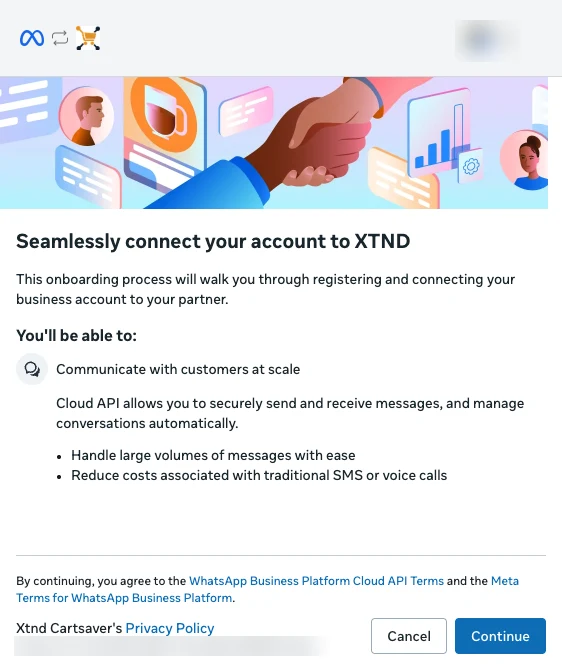
- Meta’s first screen says Seamlessly connect your account to XTND. XTND is the company that builds Cartsaver, so this is the right window. Click Continue.
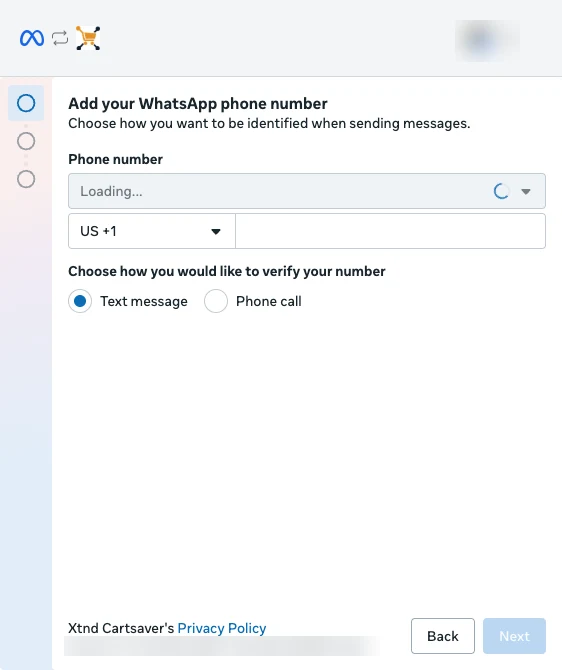
- On Add your WhatsApp phone number, pick a number from the Phone number list, or choose the country code and type a new number. Under Choose how you would like to verify your number, pick Text message or Phone call, then click Next and enter the code Meta sends.
- Meta then asks for your business assets: choose your business portfolio and your WhatsApp Business Account, or create them if you don’t have them yet.
- Meta then asks for your business information, such as the display name customers will see on WhatsApp. You choose this name here, not in Cartsaver, and Meta reviews it.
- Finish the last screen. The Meta window closes and Cartsaver shows WhatsApp connected successfully.
- Back on the dashboard, the card now reads WhatsApp connected with the status Pending setup. Your part is done.

What does “Pending setup” mean?
Section titled “What does “Pending setup” mean?”Pending setup means Meta has connected your number to Cartsaver and Cartsaver’s team is finishing the setup on its side, including creating your WhatsApp message templates and submitting them to Meta. You don’t need to do anything. The sender starts working on its own when the status changes to Active. This usually takes about an hour, and anywhere from a few minutes to 3 hours depending on Meta’s approval.
Until then, your customers keep getting every message from Cartsaver’s default sender, so nothing stops while you wait.
The card shows Number ID followed by a long number. That’s Meta’s ID for your phone number, not the phone number itself.
What changes after you connect?
Section titled “What changes after you connect?”Once the card shows Active:
- Order confirmations, OTP codes, order notifications, abandoned cart reminders, cross-sell offers and follow-ups go out from your number, under your display name.
- You can launch WhatsApp Campaigns. They need your own number to be active.
- Messages sent from your own WhatsApp number don’t use your Cartsaver message credits; Meta bills you per message directly, with no Cartsaver markup. Campaigns still carry the Cartsaver commission per delivered campaign message (see Campaign fee).
What do the statuses on the card mean?
Section titled “What do the statuses on the card mean?”| Status | What it means | What to do |
|---|---|---|
| Pending setup | Cartsaver’s team is finishing your setup. Messages go from Cartsaver’s default sender. | Nothing. Wait for Active. |
| Active | Messages go from your number. | Nothing. |
| Active + Limited | Meta limits new senders for a while. Some features, such as cross-sell, order follow-up and typed OTP codes, aren’t available on your sender yet. | Keep the sender active. Steady sending improves its quality, and the limit usually lifts in about a week. |
| Paused, with the alert Payment issue detected | Meta rejected messages because of an unpaid balance on your Meta account. | Settle the balance in Meta (Update payment method), then click Reactivate. |
| Inactive | The sender is switched off. Messages go from Cartsaver’s default sender. | Contact support. |
What happens if your Meta balance is unpaid?
Section titled “What happens if your Meta balance is unpaid?”If Meta rejects your messages because of unsettled payments on your Meta account, Cartsaver pauses your sender and shows Payment issue detected. While it’s paused:
- Order confirmations and notifications switch to Cartsaver’s default sender, so customers still get them.
- Campaigns stop until you click Reactivate.
Settle the balance in Meta, then click Reactivate on the card. Reactivating doesn’t check Meta first: if the balance is still unpaid, the next rejected message pauses the sender again.
This backup only covers an unpaid Meta balance. If Meta restricts your number for quality or policy reasons, Cartsaver doesn’t switch to its default sender. Campaigns are also blocked while Meta rates your number’s quality yellow or red; quality usually recovers within about a week. Sending through the official WhatsApp Business API protects you from the risks of unofficial WhatsApp tools, but Meta still enforces its own rules on every number.
Verify it works
Section titled “Verify it works”- On the dashboard, the Connect your WhatsApp card shows WhatsApp connected and the status Active.
- Place a test order with your own phone number. The WhatsApp message arrives from your business number, with your display name at the top of the chat.
- Open Logs on the matching dashboard card to check the message was sent.
Troubleshooting
Section titled “Troubleshooting””Failed to connect WhatsApp. Please try again.”
Section titled “”Failed to connect WhatsApp. Please try again.””Cartsaver shows this one message for every failed attempt: you closed or cancelled the Meta window, the window couldn’t load, your plan doesn’t include your own number, a number is already connected, or a step on Meta’s side failed. Reload the dashboard, check your plan, make sure pop-ups are allowed, and run the sign-up again to the last screen. If it fails again, contact support and tell them at which screen it stopped.
You don’t see your business portfolio, or Meta won’t let you continue
Section titled “You don’t see your business portfolio, or Meta won’t let you continue”You need Super Admin (full control) access to the Meta business portfolio that owns, or will own, the WhatsApp Business Account. Ask the portfolio’s admin to give you that access in Meta Business settings, or ask them to run the sign-up.
Meta says the number is already registered
Section titled “Meta says the number is already registered”The number is already on the WhatsApp Business Platform, for example with another provider. Remove it there first, or connect a different number. If the number is only in the WhatsApp Business app, connect it from the Business app option in Meta’s window rather than as a new number.
The verification code doesn’t arrive
Section titled “The verification code doesn’t arrive”Check that you chose the right country code and that the phone can receive texts or calls. Go back and switch between Text message and Phone call, then request the code again.
The status stays “Pending setup”
Section titled “The status stays “Pending setup””Pending setup usually takes about an hour, and anywhere from a few minutes to 3 hours depending on Meta’s approval of your message templates. Your messages go out from Cartsaver’s default sender meanwhile. If the card still shows Pending setup after 3 hours, contact support.
Messages still come from Cartsaver’s default sender
Section titled “Messages still come from Cartsaver’s default sender”Your own number is used only while its status is Active. Check the card: Pending setup and Inactive both use the default sender, and Paused with Payment issue detected means you need to settle your Meta balance and click Reactivate.
You need to change or disconnect your number
Section titled “You need to change or disconnect your number”The app has no disconnect or change-number button, and the connect button is hidden once a number is connected. Contact Cartsaver support from the Support channels card on the dashboard.