
Shipping Hub: Bosta Setup, Labels, Tracking
Shipping Hub is a Cartsaver integration with Bosta that books Bosta deliveries for your Shopify orders from inside the Cartsaver admin. You pick the delivery area, check the cash to collect, print airway bills and a pickup manifest, and follow each parcel until delivery. Cartsaver is not a courier and doesn’t ship anything itself: Bosta collects and delivers your parcels.
For what the integration means for an Egyptian COD store, read Shopify Bosta integration on the Cartsaver site.
Open it from Shipping Hub in the Cartsaver app menu. A Beta badge sits beside the page title.
Shipping Hub is available on every Cartsaver plan, including Free. It is in Beta, and every booking is a real Bosta delivery.
Before you start
Section titled “Before you start”You need three things:
- A Bosta business account. Shipping Hub connects to your own Bosta account. Bosta, Egypt only, is the one carrier supported today.
- A Full Access API key. In the Bosta dashboard, open Settings, then API Integration, and create a key with Full Access. Cartsaver needs Full Access to cancel shipments, and it refuses a narrower key when you connect.
- A pickup location in Bosta. This is the address the courier collects your parcels from. You add pickup locations in the Bosta dashboard; Cartsaver can’t create them.
Every booking creates a real Bosta delivery. There is no sandbox or test mode for merchants, so use a real order you intend to send.
Connect Bosta
Section titled “Connect Bosta”- In Shipping Hub, click Settings at the top of the page.
- In the carrier row, click Connect. The Connect Bosta window opens.
- Paste your key into API key and confirm. To find or create the key, click Open Bosta API settings in the help text under the field: it opens the API Integration page of your Bosta dashboard in a new tab.
- Cartsaver checks the key with Bosta, including that it is Full Access, then loads your pickup locations.
- Under Pickup location, choose the address Bosta collects from. If your Bosta account has only one, Cartsaver selects it for you.
If the key is refused, the window tells you why:
| Message | What to do |
|---|---|
| “This Bosta API key is not Full Access, so it could not cancel a shipment.” | Create a Full Access key in the Bosta dashboard and connect again. |
| Bosta “did not accept these credentials” | Copy the key again and check it is complete. |
| “could not reach Bosta right now. Your credentials were not checked.” | Try again in a few minutes. |
Your API key is stored encrypted. To replace it later, click Update credentials in the same row.
If you add a pickup location in Bosta after connecting, click Resync under Pickup location to load it. With no locations the section says “Your Bosta account has no pickup locations. Add one in your Bosta dashboard, then resync.”
You can connect one carrier at a time.
The Orders screen
Section titled “The Orders screen”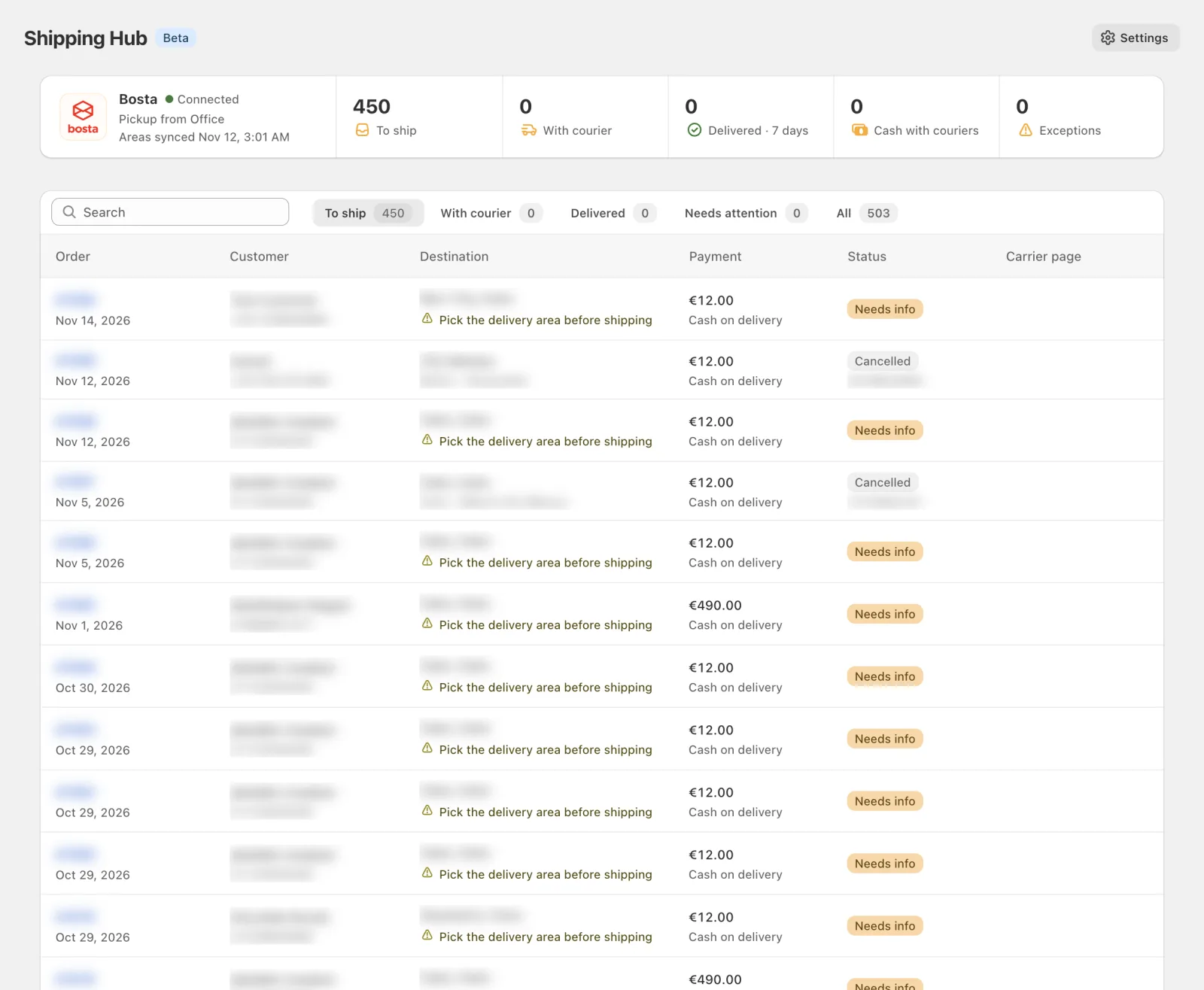
The Orders screen has five tabs:
- To ship: unfulfilled Shopify orders that are not cancelled.
- With courier: awaiting pickup, in transit, out for delivery or ready for pickup.
- Delivered.
- Needs attention: exceptions, parcels returned to sender, failed bookings, and bookings Bosta never confirmed.
- All: every order that is not cancelled.
A search box finds any order, whatever tab is open. Above the list, a stats strip shows orders to ship, parcels with the courier, deliveries in the last 7 days with your delivery rate over the last 30 days, Cash with couriers (the COD still out on parcels in transit) and exceptions.
Before an order is booked, its row shows one badge:
- Needs info: the address or delivery area needs your attention.
- Unverified: the customer hasn’t confirmed the order through Cartsaver’s COD verification. This is a warning only; you can still ship it.
- Ready to ship.
Each booked shipment has an Open in Bosta link to its page in your Bosta business dashboard.
Ship an order
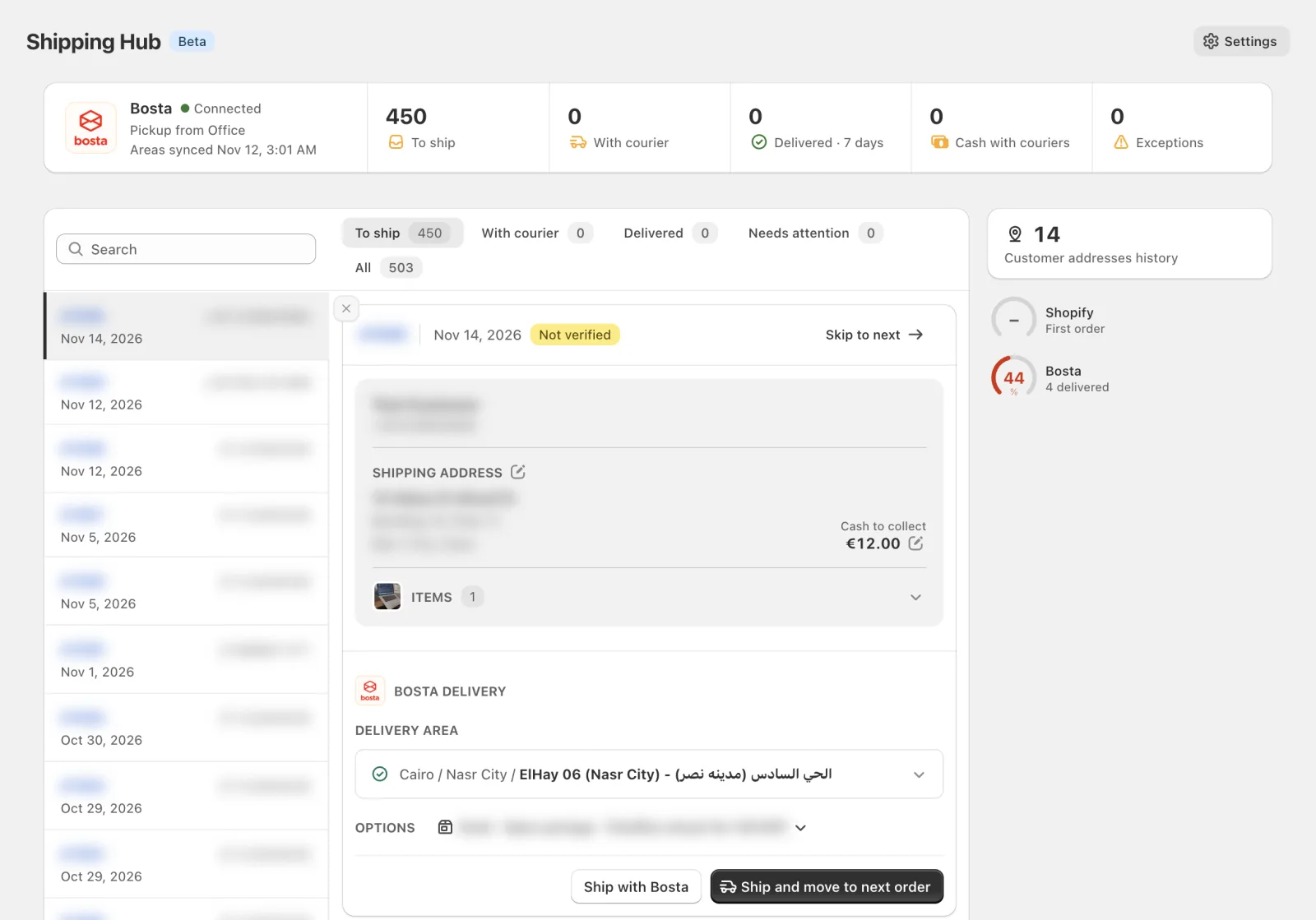
Section titled “Ship an order”Click an order to open it in the order panel beside the list.
1. Check the delivery area
Section titled “1. Check the delivery area”Bosta books deliveries by district, in a tree of Governorate › Zone › District.
- Cartsaver matches the governorate from the Shopify province, by its Arabic or English name or its code.
- The district is preselected only when the city on the order exactly matches a Bosta area name. Otherwise choose one from the searchable Pick a delivery area list. Area names show in Arabic and English.
- To choose an area in another governorate, use Search outside the matched governorate. The shipment timeline records that choice.
- Customer addresses history lists the customer’s earlier Shopify addresses, and the addresses Bosta has delivered to when your Bosta account is signed in. Click Use this delivery area to reuse an area. Only the area is reused; the parcel still goes to the address on the order.
To fix the address itself, click Edit address. Your changes are saved to the Shopify order, and you pick the delivery area again. Bosta refuses a street line shorter than 6 characters.
Cartsaver refreshes the Bosta area list every day and when you connect. The card shows the date of the last sync.
2. Check the cash to collect
Section titled “2. Check the cash to collect”The cash to collect starts at the amount still unpaid on the Shopify order, so a prepaid order books with nothing to collect. To change it, click Edit cash to collect and enter 0 or more, with up to two decimals; 0 books the parcel as prepaid. Use the Shopify amount restores the original. Your change applies to the Bosta booking only and is not written back to Shopify.
Bosta accepts up to 30,000 EGP cash on delivery per parcel. Cartsaver refuses a higher amount before it contacts Bosta.
3. Choose the shipment options
Section titled “3. Choose the shipment options”The Options line sums up what will book, for example “Small · Open package · FlexShip refusal fee 100 EGP”. Click it to change an option for this order only.
- Package size: Small, Medium, Large, Light bulky or Heavy bulky. It starts at your default from Settings, which is Small unless you change it.
- Open package: the customer may open the parcel before accepting it. Bosta needs product images for this, so Cartsaver stops the booking when none of the order’s products has an image. Turn Open package off for that order, or add images to the products in Shopify.
- FlexShip refusal fee: an amount charged to the customer when they refuse the parcel. It shows only while FlexShip is active on your Bosta account, and only when Open package is on for the order. The amount starts at your default from Settings; Bosta accepts 15 to 250 EGP.
Open package and FlexShip refusal fee start from your rules in Settings on every order. With Cash on delivery only, they are on when the cash to collect is above 0, so a prepaid order books without them. When Open package is on and the fee is off, Cartsaver tells Bosta not to charge it, even if FlexShip is active on your account.
4. Check the verification badge
Section titled “4. Check the verification badge”The panel shows Verified or Not verified for COD orders, from Cartsaver’s own order confirmation. An unverified order is not blocked: decide whether to ship it, call the customer first, or skip it. The customer score below can help.
5. Book it
Section titled “5. Book it”The panel has three actions:
- Ship and move to next order: books the delivery in the background and opens the next order straight away.
- Ship with Bosta: books the delivery and stays on this order.
- Skip to next: moves on without booking.
Your package size carries over to the next order; Open package and FlexShip refusal fee start again from your Settings rules. Each booking goes to Bosta with the receiver’s name and phone, the district, the street, the cash to collect, an item description, up to 10 product photos, the items’ subtotal as the goods value and, when they are on, Open package and the FlexShip refusal fee.
The Shipped in this run tray lists each booking with its tracking number and status, or the error with an Open action.
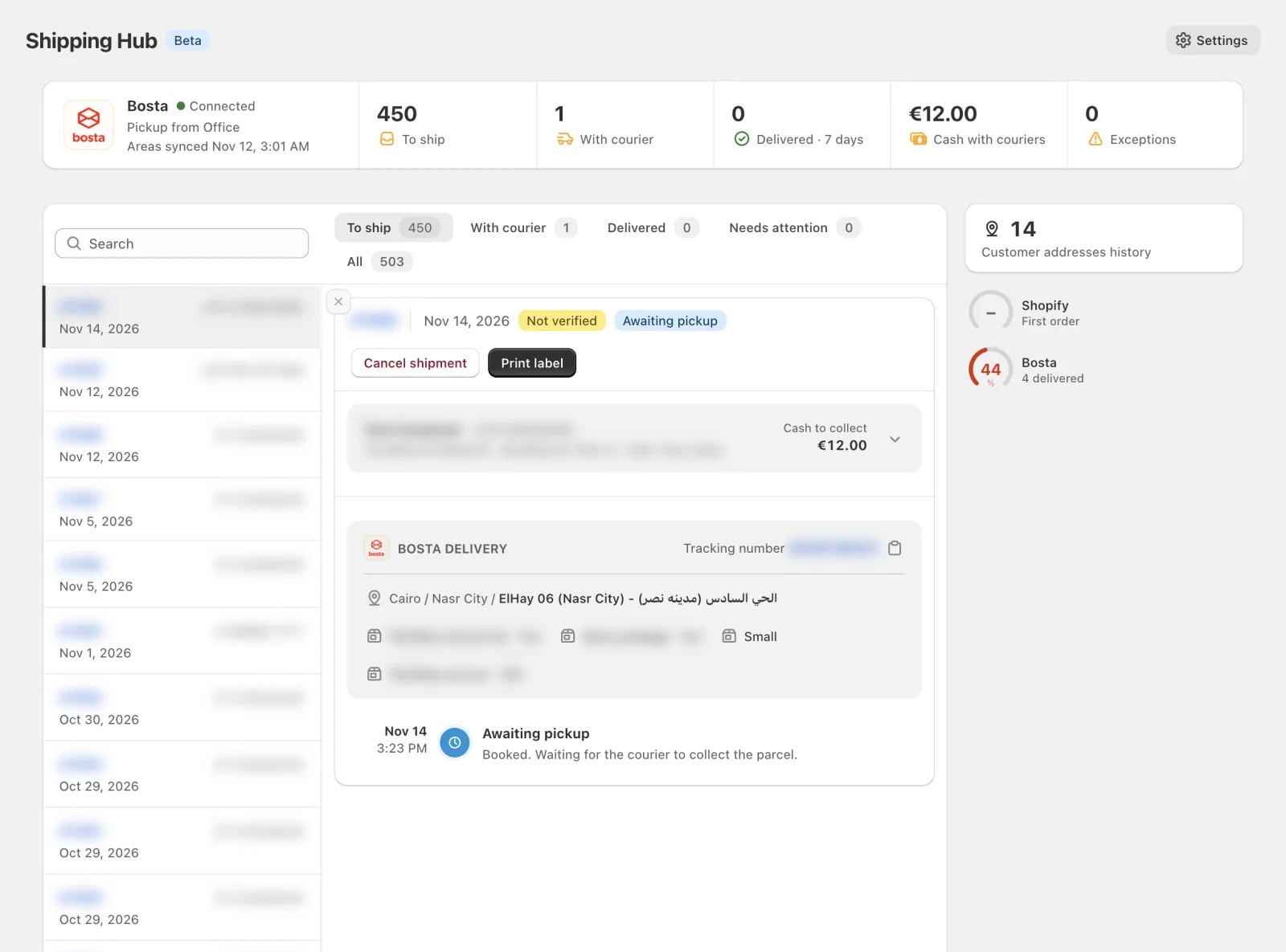
Ship stays disabled until you have a pickup location, the order isn’t cancelled, a delivery area is set, and no address or cash edit is left open. The panel says “Choose a pickup location before shipping.” when the location is missing.
When Bosta doesn’t confirm a booking
Section titled “When Bosta doesn’t confirm a booking”If Bosta doesn’t answer in time, Cartsaver never retries on its own, so you can’t be booked twice or collect cash twice. The order shows “The carrier did not confirm this booking”. Click Check with carrier: Cartsaver looks the booking up in Bosta, then either links the delivery Bosta created or lets you ship again.
Airway bills and pickup manifest
Section titled “Airway bills and pickup manifest”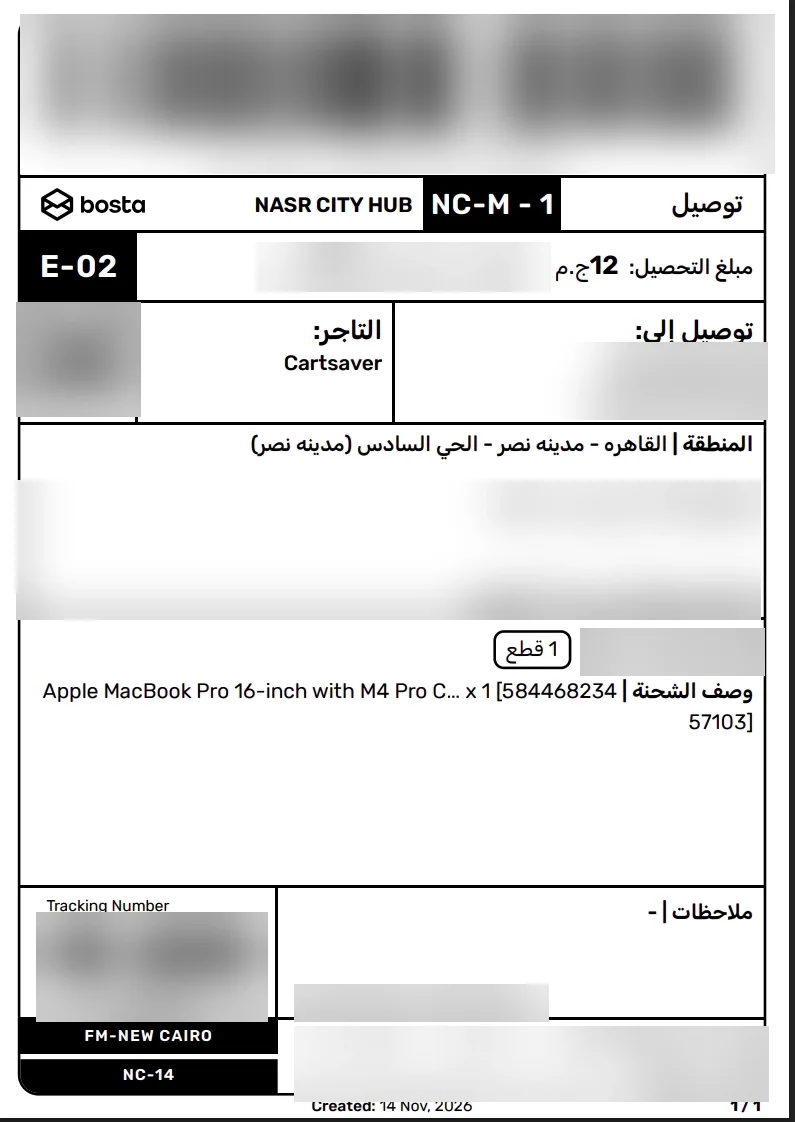
- Print label prints the airway bill for one shipment.
- Print labels prints the shipments you select on the With courier tab.
- Print all labels prints every booking in the Shipped in this run tray.
Labels come as one PDF, up to 100 shipments per print.
Print manifest prints a pickup manifest for the shipments you select on With courier. It is a bilingual sheet, “Pickup manifest / إذن تسليم شحنات”, grouped by pickup location, with columns #, Tracking, Order, Customer, Area and COD, and a cash total per location. Prepaid parcels count as nothing to collect. The sheet ends with signature blocks for the courier (“Received by driver”) and for you (“Handed over by”).
Tracking and Shopify sync
Section titled “Tracking and Shopify sync”Status updates reach Cartsaver two ways:
- Bosta webhooks: each booking registers a callback, so updates arrive as Bosta sends them.
- A status check every 3 hours for parcels with no update in 12 hours. Cartsaver stops checking a parcel after 30 days without news.
A shipment moves through Awaiting pickup, In transit, Out for delivery, Ready for pickup and Delivered, or ends as Returned to sender, Exception, Cancelled or Failed. The timeline shows each update with its time, location, Bosta’s note and, when Bosta provides it, who signed for the parcel. In the panel, the tracking number links to Bosta’s public tracking page, with Copy tracking link.
On the Shopify side:
- Mark the order as fulfilled when it ships (on by default): Cartsaver fulfills the order in Shopify with the company “Bosta”, the tracking number and Bosta’s tracking link. Shopify’s own shipping confirmation email isn’t triggered by it.
- Status events: each status change is added to the Shopify fulfillment (in transit, out for delivery, delivered, attempted delivery, failure).
- Cancel the fulfillment when a shipment is cancelled (on by default): cancelling a shipment returns the order to unfulfilled in Shopify, so you can ship it again.
Because the order is fulfilled with Bosta’s tracking link, a customer who asks about the order on WhatsApp gets that link from Auto-reply (Order Inquiry). If your Order Notifications Fulfilled message is on, it goes out when the order is fulfilled.
Cancel a shipment
Section titled “Cancel a shipment”Cancel shipment is available only while the shipment is Awaiting pickup. Confirm with Yes, cancel shipment. After the courier collects the parcel, the shipment can no longer be cancelled from Cartsaver.
After a cancel, Ship again books a new attempt with the same delivery area and options. Earlier attempts stay in the timeline. If Bosta can’t be reached during a cancel, the shipment is flagged Check with carrier.
Customer score (optional)
Section titled “Customer score (optional)”The order panel shows a score gauge for each source beside the customer’s name, so you can spot a risky COD order before you book it. The score informs you only: it never changes the row badge and never blocks shipping.
- Bosta gauge: the customer’s delivery success rate with Bosta, across every merchant Bosta delivers for, found by phone number. Beside it you see how many parcels were delivered. Hover to see delivered and returned counts, and Unpaid returns reported when Bosta has flagged the number.
- Store gauge: the share of this customer’s recent orders in your store that were neither cancelled nor returned, with their total order count and a link to their orders in Shopify. A first order shows First order.
Colours: green at 85% and above, amber from 60% to 84%, red below 60%. An unpaid-returns flag is always red.
Sign in to your Bosta dashboard
Section titled “Sign in to your Bosta dashboard”The store gauge works without setup. The Bosta gauge needs a second, optional sign-in with your Bosta dashboard login, separate from the API key:
- In Shipping Hub Settings, under the connected carrier, find Bosta account.
- Click Sign in and enter your Bosta dashboard Email and Password.
- If your Bosta account uses two-factor authentication, enter the 6-digit Authentication code from your authenticator app.
Your email and password are stored encrypted. The authentication code is used for that sign-in only and is not stored. Cartsaver signs in again by itself when Bosta’s session expires, about every 14 days; accounts with two-factor authentication need you to sign in again by hand. Shipping never depends on this sign-in: without it, the Bosta gauge shows Sign in to see.
The Bosta score is cached for 24 hours per phone number and is read only when you open the order. If Bosta’s data can’t be read, the gauge shows Unavailable; if the sign-in stops working, it asks you to sign in again in Settings. Click Sign out to remove it.
Settings and defaults
Section titled “Settings and defaults”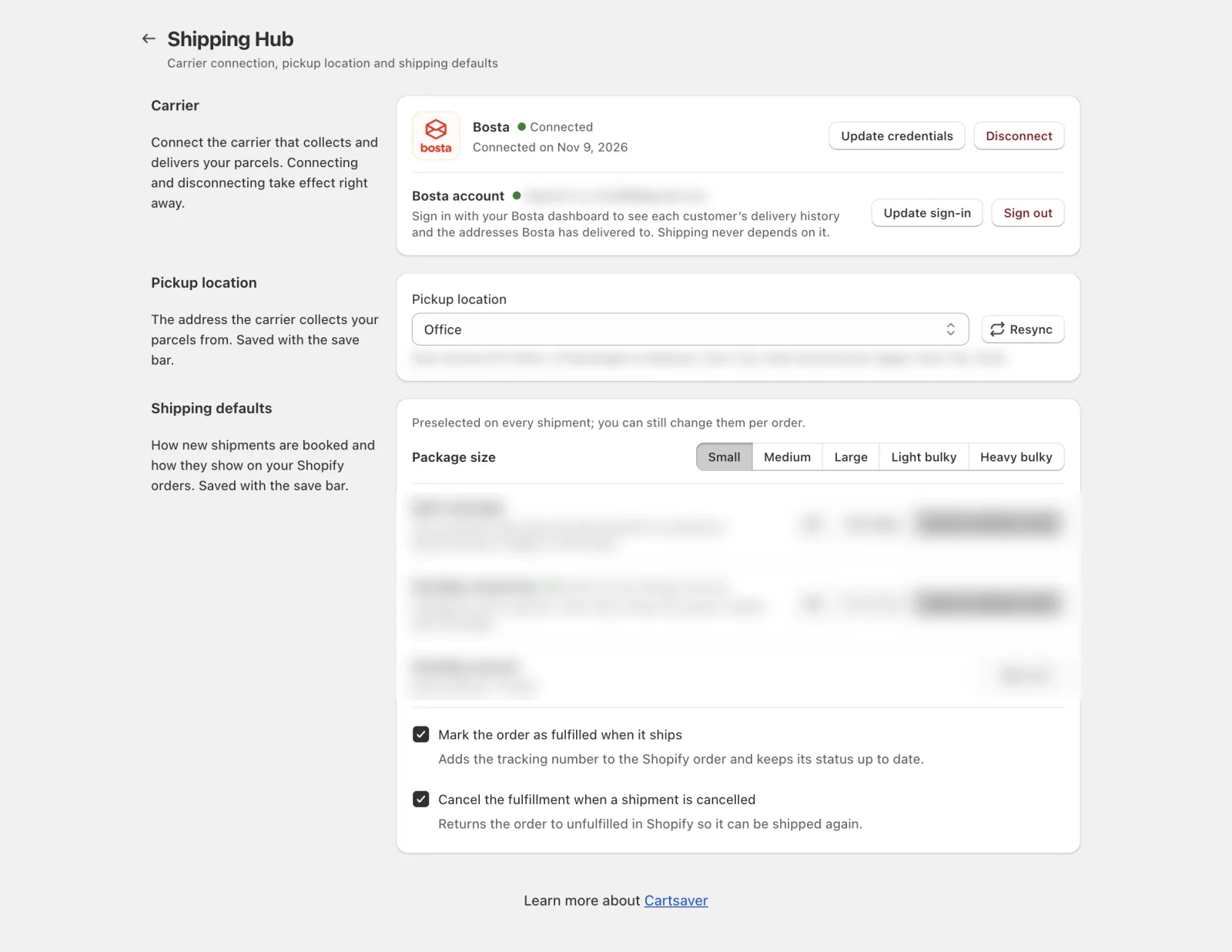
Shipping Hub has its own Settings page, opened from Settings at the top of Shipping Hub, with one save bar for:
- Carrier: Connect, Update credentials, Disconnect, and the optional Bosta account sign-in.
- Pickup location: the address Bosta collects from, with Resync.
- Shipping defaults: the default Package size (preselected on every shipment, still changeable per order), Mark the order as fulfilled when it ships, and Cancel the fulfillment when a shipment is cancelled. Both toggles are on by default.
- Open package and FlexShip refusal fee: a rule for each, Off (the default), All orders or Cash on delivery only. The FlexShip rule can’t reach more orders than the Open package rule.
FlexShip is turned on in your Bosta dashboard, not in Cartsaver. Its row shows “Active on your Bosta account” or “Not active on your Bosta account”, with a Turn it on in Bosta link while it is off. Cartsaver reads it from Bosta each time you open Settings, so open Settings again after you turn it on. While it is active, FlexShip amount sets the default fee, from 15 to 250 EGP, and the row shows the amount on your Bosta account as “Bosta default”.
Disconnect Bosta
Section titled “Disconnect Bosta”Click Disconnect in the carrier row and confirm. It takes effect at once and removes your API key, pickup location and Bosta dashboard sign-in. Your shipment history stays.
Parcels already booked stay booked with Bosta and keep reporting their status, but you can’t print their labels or cancel them from Cartsaver until you connect Bosta again.
Limits
Section titled “Limits”- Carrier and country: Bosta only, in Egypt only. One carrier connection at a time.
- No sandbox: every booking is a real Bosta delivery.
- Cash on delivery: up to 30,000 EGP per parcel.
- Delivery type: outbound deliveries only. Returns and exchanges can’t be booked from Cartsaver.
- One order at a time: you book orders one after another from the order panel. Printing labels and manifests works in bulk.
- Labels: up to 100 shipments per print.
- Not sent to Bosta: the Shopify order note.
- Open package: needs at least one product image on the order.
- FlexShip refusal fee: only while FlexShip is active on your Bosta account, from 15 to 250 EGP per parcel.
- Customer messages: Shipping Hub sends no shipping messages of its own to customers.
Does Cartsaver deliver my parcels?
Section titled “Does Cartsaver deliver my parcels?”No. Cartsaver is not a courier and doesn’t ship anything itself. Shipping Hub is an integration with Bosta: you book the delivery from the Cartsaver admin, and Bosta collects the parcel from your pickup location and delivers it under your own Bosta account. Cartsaver handles the booking, labels, tracking and Shopify updates.
Which plans include Shipping Hub?
Section titled “Which plans include Shipping Hub?”Every Cartsaver plan, including Free. Shipping Hub is in Beta, and every booking is a real Bosta delivery. Before you ship your first order, you need your own Bosta business account, a Full Access API key, and a pickup location set up in the Bosta dashboard. Cartsaver loads the pickup location when you connect.
Do I need the Bosta dashboard sign-in to ship?
Section titled “Do I need the Bosta dashboard sign-in to ship?”No. Shipping only needs the Full Access API key and a pickup location. The Bosta dashboard sign-in is optional and adds the Bosta customer score: each customer’s delivery success rate across Bosta merchants. Without it, the Bosta gauge shows Sign in to see, and everything else works the same.
Can I test Shipping Hub without a real delivery?
Section titled “Can I test Shipping Hub without a real delivery?”No. There is no sandbox or test mode for merchants, and every booking creates a real Bosta delivery. To try it, ship a real order you intend to send. If you book by mistake, cancel the shipment while it is still Awaiting pickup; with the default settings, the Shopify order returns to unfulfilled.
Can I ship several orders at once?
Section titled “Can I ship several orders at once?”Not in one click. You book orders one after another from the order panel. Ship and move to next order books in the background and opens the next order at once, keeping your package size. Printing works in bulk: select shipments on With courier to print their labels or a pickup manifest.
Why is the Ship button disabled?
Section titled “Why is the Ship button disabled?”Ship needs a pickup location, an order that isn’t cancelled, a delivery area, and no address or cash edit left open. Check Settings for a pickup location first, then pick a delivery area if none is preselected. An unverified order is not the cause: Cartsaver only shows a warning badge for it.
Can I cancel a Bosta shipment from Cartsaver?
Section titled “Can I cancel a Bosta shipment from Cartsaver?”Yes, while the shipment is still Awaiting pickup. Open the order and click Cancel shipment, then Yes, cancel shipment. Once the courier has collected the parcel, it can no longer be cancelled from Cartsaver. After a cancel, Ship again books a new attempt with the same area and options.
Related
Section titled “Related”- Shopify Bosta integration: what Shipping Hub means for an Egyptian COD store.
- WhatsApp Order Confirmation: the verification behind the Verified and Unverified badges.
- Auto-reply (Order Inquiry): sends the Bosta tracking link when a customer asks about the order.
- Order Notifications: the Fulfilled message that goes out when an order is fulfilled.
- Pricing & Plans: every plan, including Free.